Every screenshot below comes in both desktop and phone versions. Use the switch above to see the layout for whichever device you are using — it stays set as you scroll.
Your first timer in under a minute.
Where your hours actually went.
Turn tracked time into a PDF invoice.
Your data is yours. Keep a copy.
1 · Getting started
Trac needs no sign-up. Open it, and it is ready. Everything you track is written to your browser's own storage on your device — not to a server.
Because your data lives in this browser, it can be lost with this browser. Clearing site data, using private browsing, or switching to another machine leaves your history behind. Read Backups before you have months of work to lose.
Install it (optional but recommended)
Use the Install button in the top bar to add Trac to your desktop or home screen. It then opens in its own window and works offline.
Type what you are working on
Click the task box, type a name, and press Enter. If the task does not exist yet, Trac offers to create it — you do not have to set up projects first.
Hit Start, and get on with it
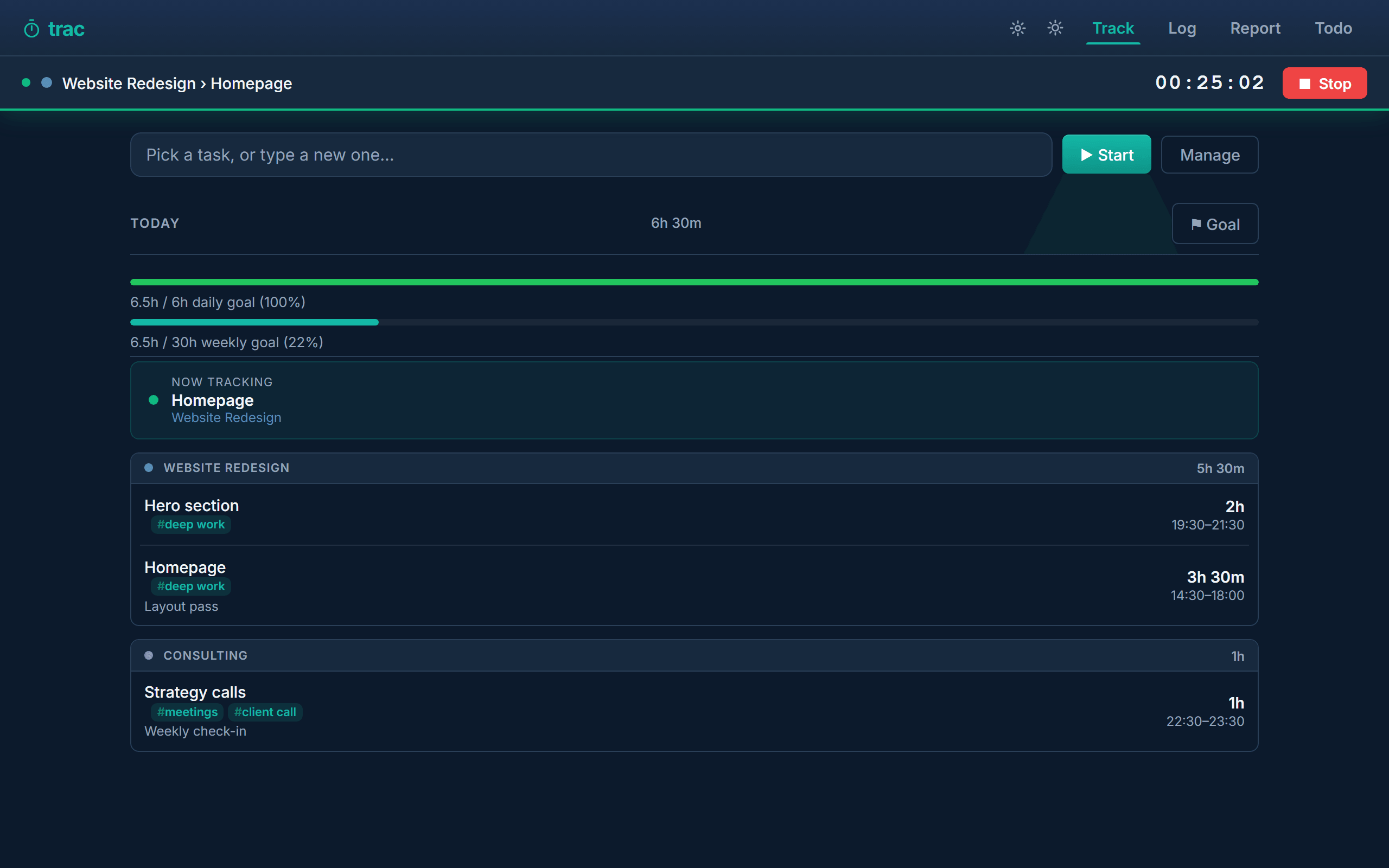
The green strip at the top shows what is running and for how long. Press Space or click Stop when you are done.
2 · Tracking time
The Track tab is the one you will live in. A task picker and a Start button at the top; everything you have logged today underneath.
The running strip
While a timer runs, a strip pins itself below the header showing the project, the task and a live clock. It is visible from every tab, so you can be on Reports and still see that the clock is going.

Only one timer runs at a time. Starting a new task does not silently stop the old one — stop what you are on first.
Today's entries
Finished entries are grouped by project, newest first, each showing its duration and the exact times it ran. The pencil on a row lets you add a note. Anything you tracked without picking a task appears as [unassigned] with a Tag now prompt so you can attach it to a project afterwards.
3 · Goals & streaks
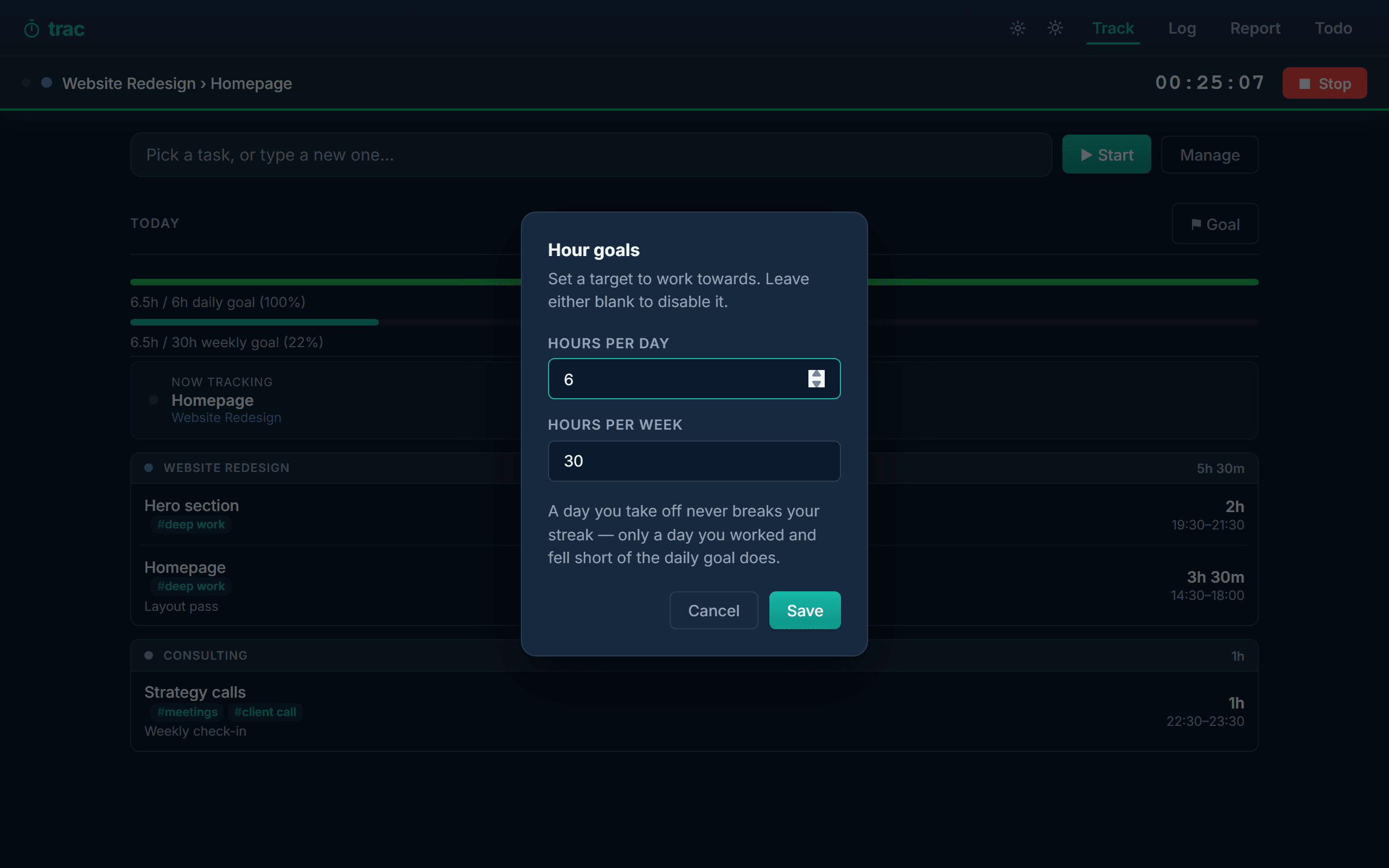
Set a daily target, a weekly target, or both, from the ⚑ Goal button. Leave a field blank to switch that one off; leave both blank and the whole strip disappears.

How the streak actually works
This is worth understanding, because most streak counters get it wrong:
- A day you did not work at all is skipped, not counted as a miss. Weekends, holidays and days off do not break your streak. A counter that reset every Saturday would be meaningless for anyone who works weekdays.
- A day you worked but came in under the goal does break it. That is the thing being measured — consistency on the days you choose to work.
- Today can never break your streak. It is still in progress. At 9am with twenty minutes tracked, your streak is intact; it extends the moment you pass the goal.
The weekly streak works the same way against the weekly target, and the current week only ever adds to it. Streaks appear once you reach two — a streak of one is just "today".
4 · Projects & tasks
Manage opens everything: projects, the tasks inside them, and sub-tasks inside those. Time is always logged against a task, and tasks always belong to a project.
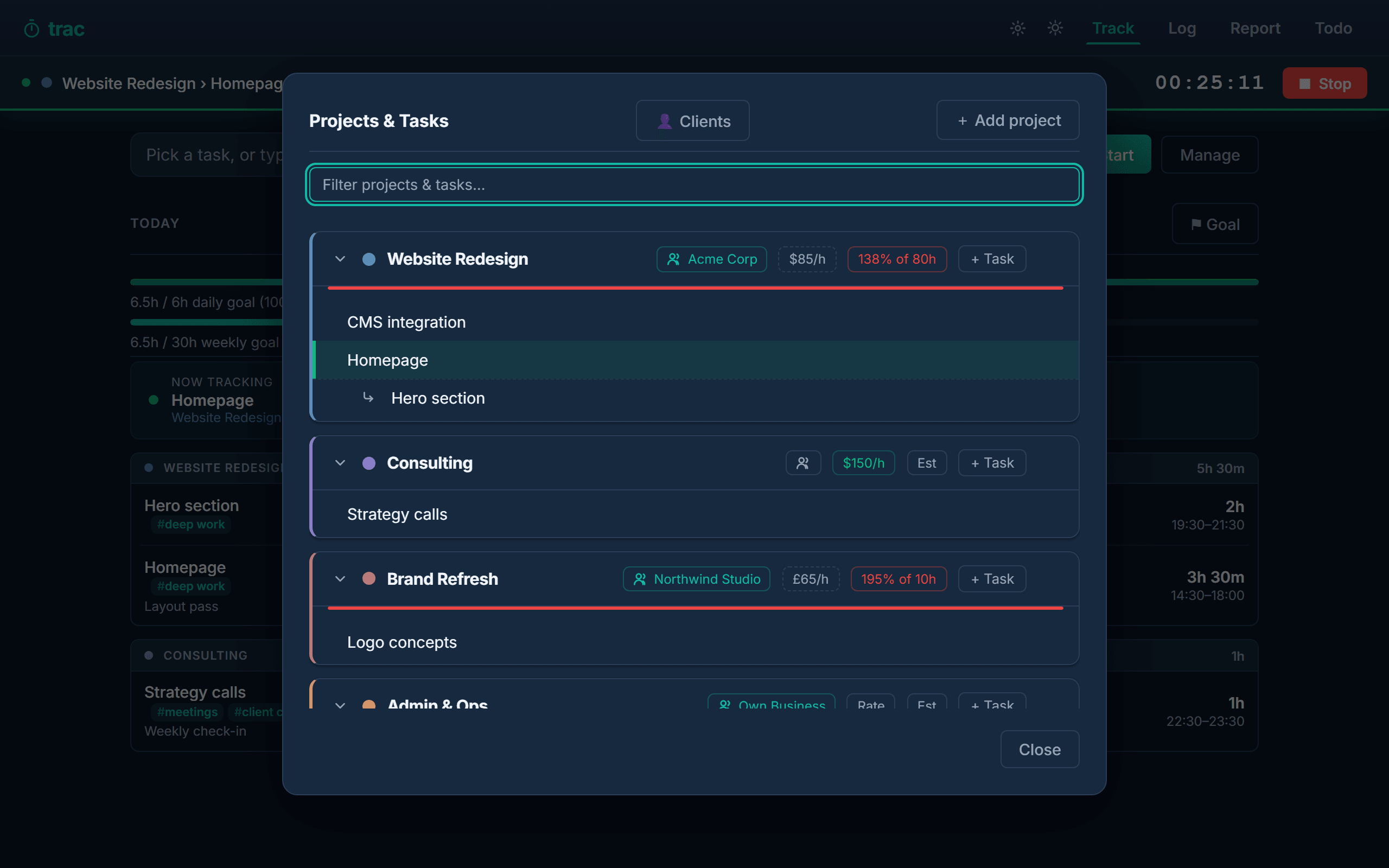
| Control | What it does |
|---|---|
| Rate | An hourly rate for this project. Overrides the client's default rate. No rate anywhere means the time is tracked but never billed. |
| Est | An hours budget for the project — see Estimates. |
| + Task | Adds a task; a task can then have sub-tasks for finer breakdown. |
| Pin | Keeps a project or task at the top of the list, above the normal newest-first order. |
| Archive | Hides a finished project without deleting its history. Archiving a project archives its tasks. |
Archive, do not delete. Deleting a project removes its tasks; entries that referenced them become unassigned. Archiving keeps every hour intact and simply gets the project out of your way.
5 · Estimates
Give a project an hours budget and Trac shows how much of it you have burned — on the project card, and in an Estimates section on the Report tab sorted worst-first.
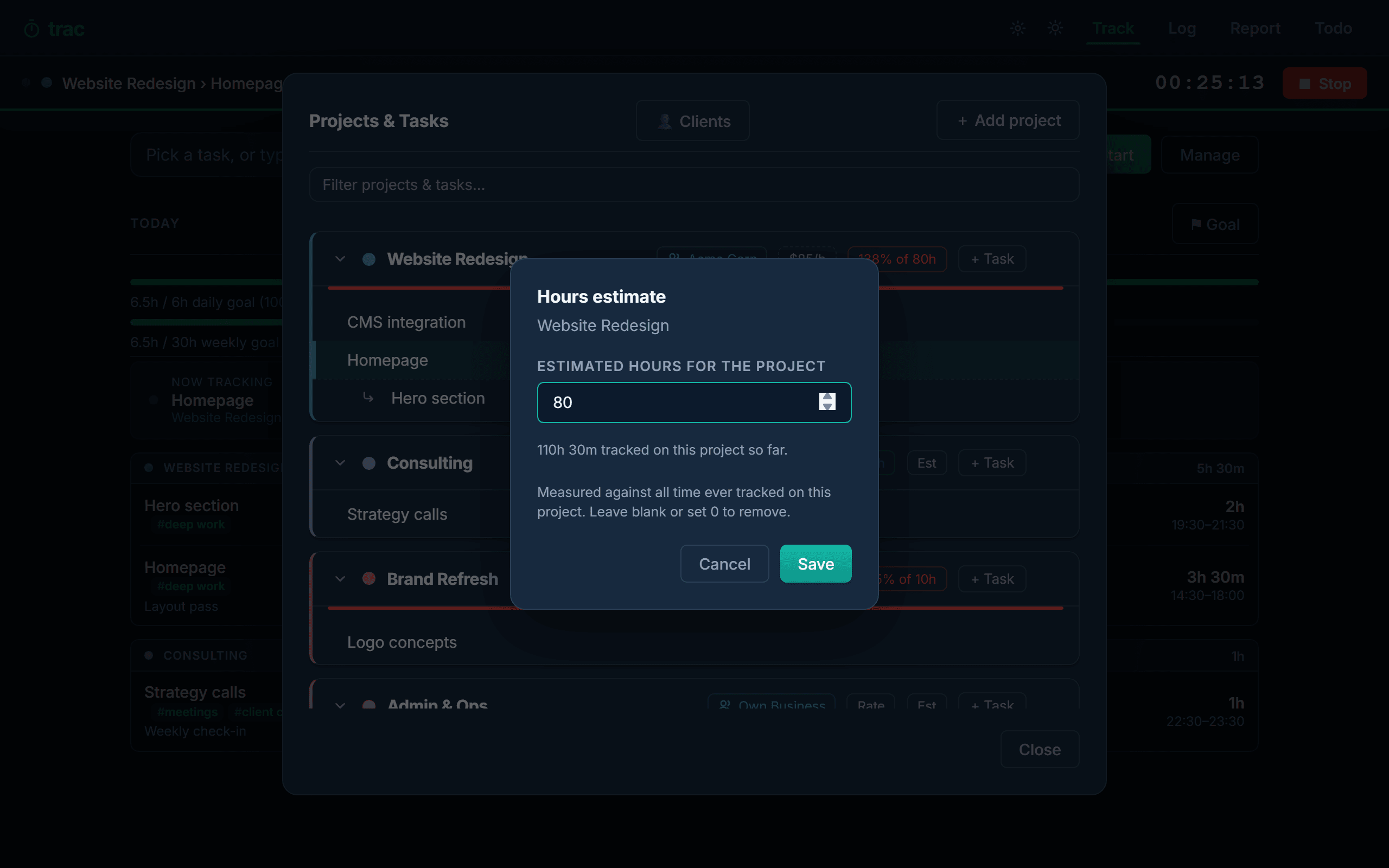
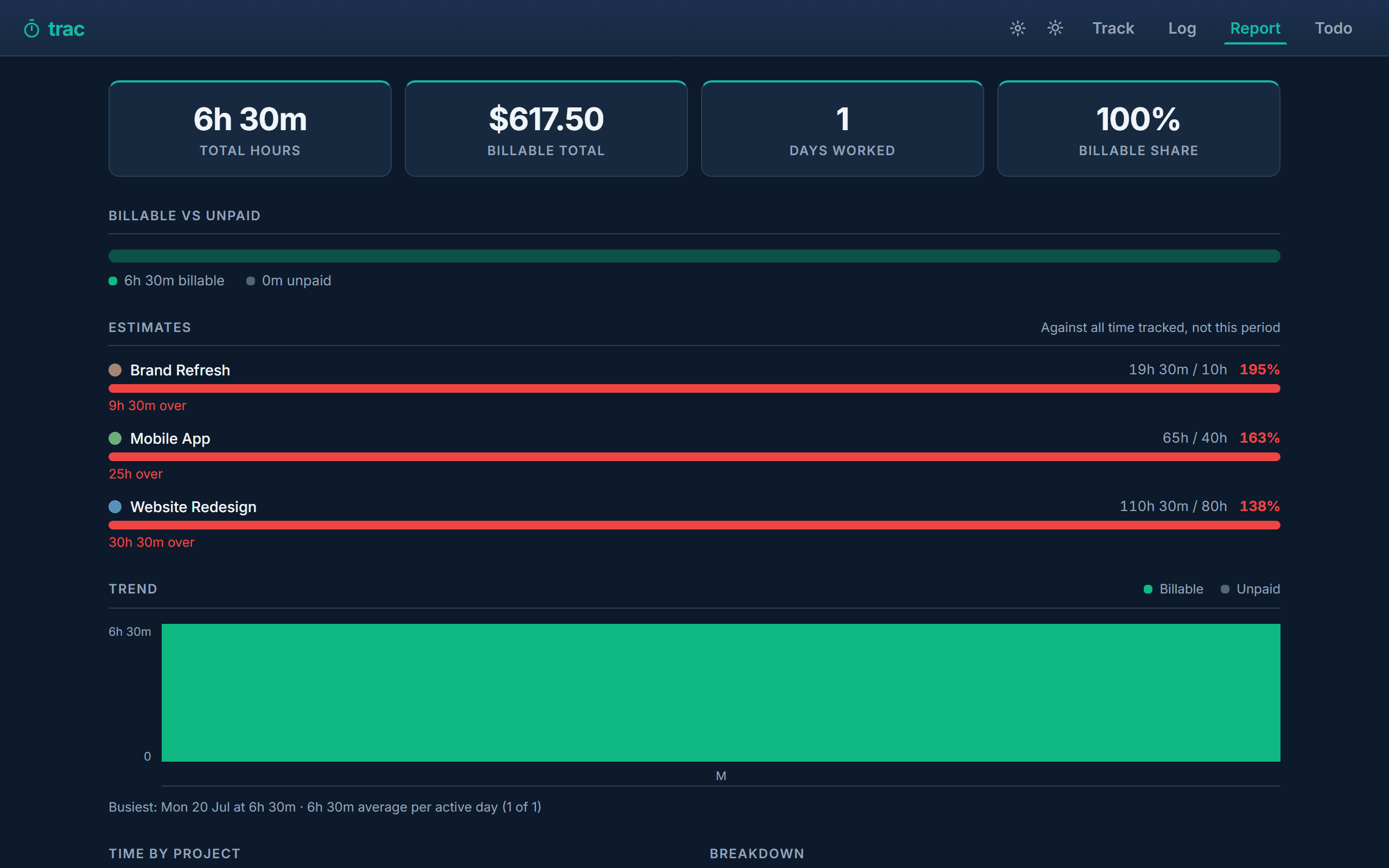
Estimates ignore the report date range. A budget covers the whole job, so progress is always measured against every hour ever tracked on that project. Switching between "This week" and "This month" will not move these numbers — everything else on the Report tab does follow the range.
6 · The Log
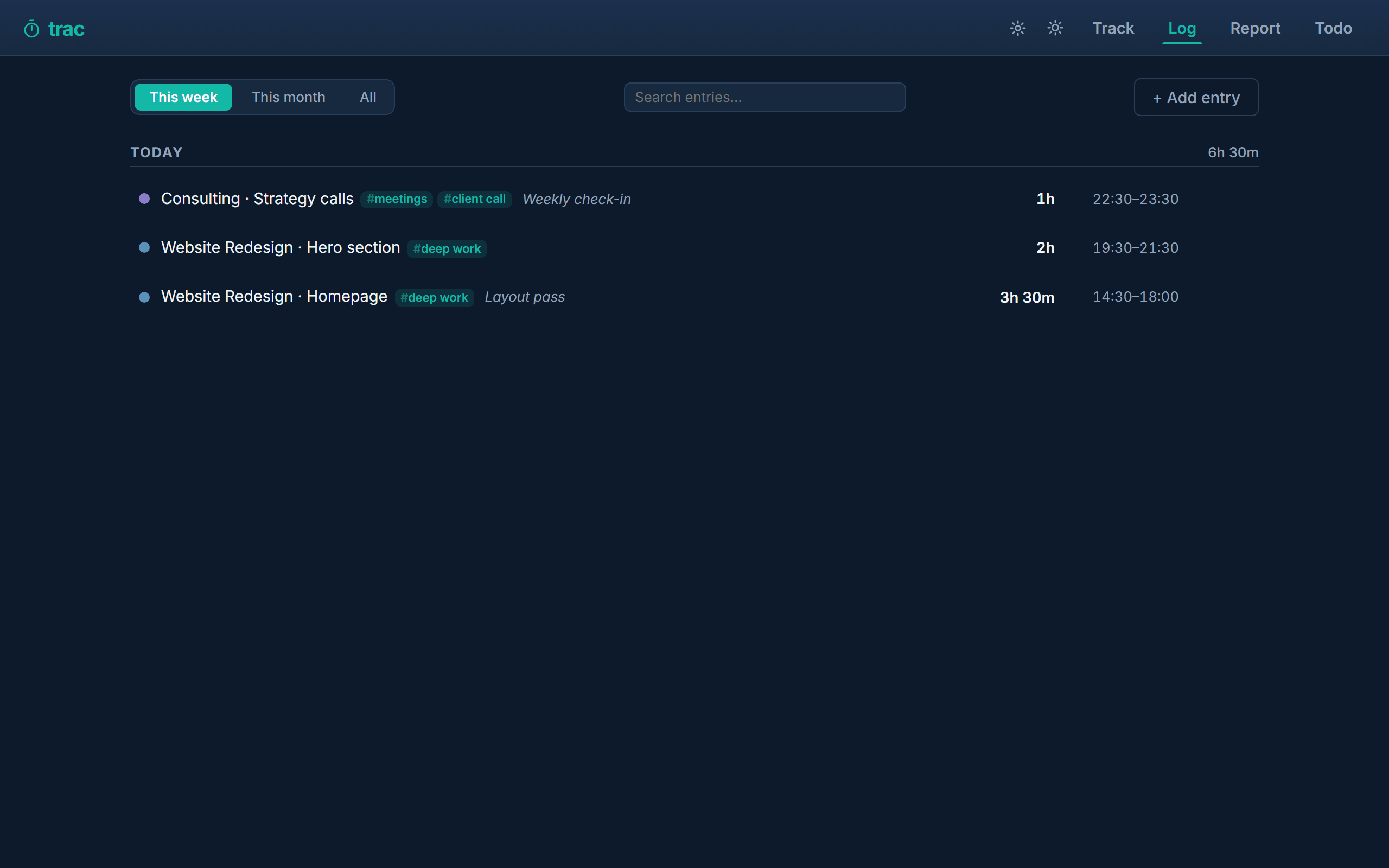
Every entry you have recorded, grouped by day with daily totals — the last 90 days on the free plan, your full history once you upgrade. This is where you fix things.
Editing an entry
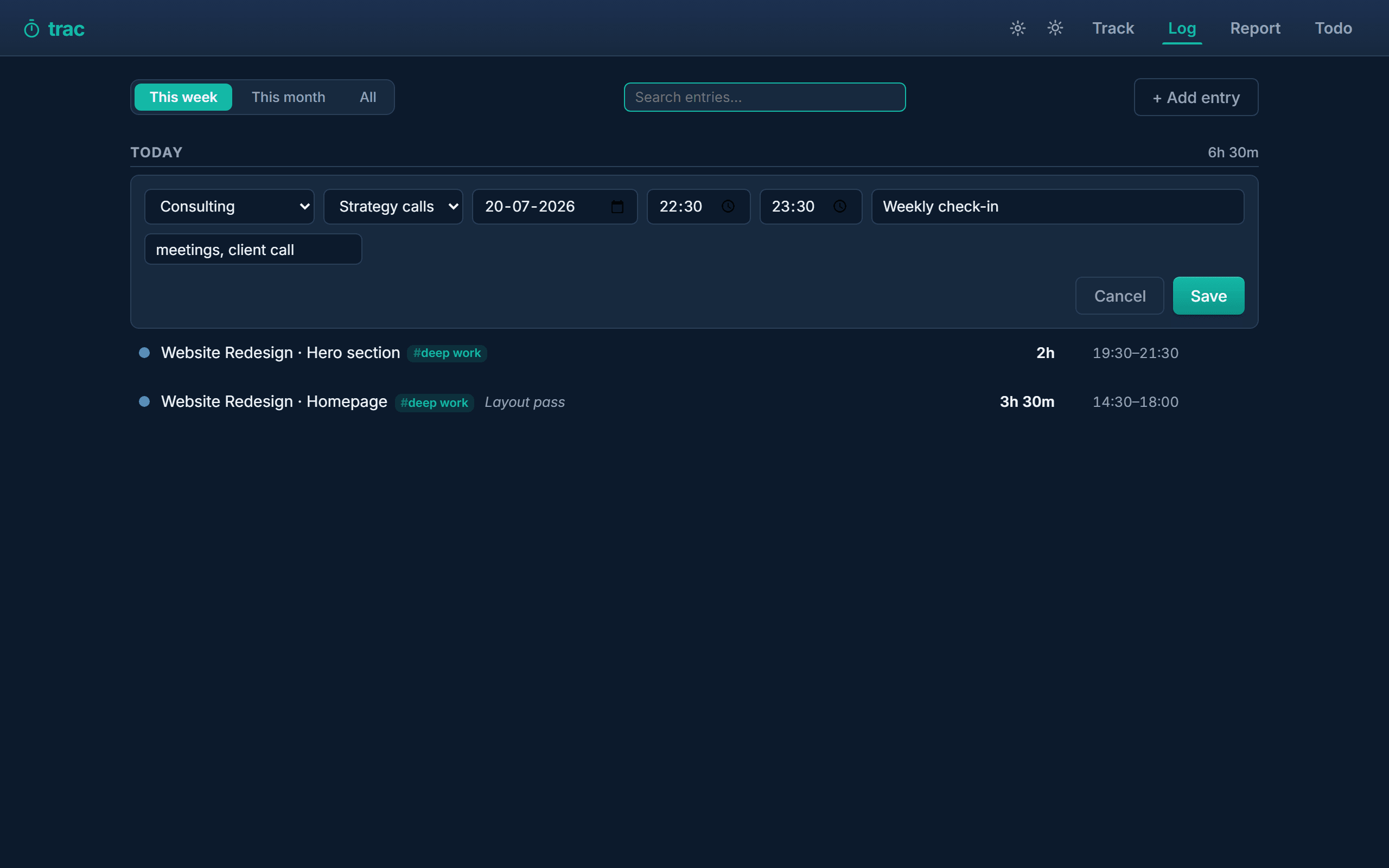
The pencil opens the row for editing in place: project, task, date, start, end, notes and tags. Change the times and the duration recalculates.
Adding time you forgot to track
Press N or use Add entry for work you did away from the keyboard. Pick the project, task, date and times, and add notes or tags.
7 · Tags
Tags are free-form labels on individual entries — #meetings, #admin, #deep work. They cut across projects, so you can ask "how much of this month went to meetings?" regardless of who it was for.
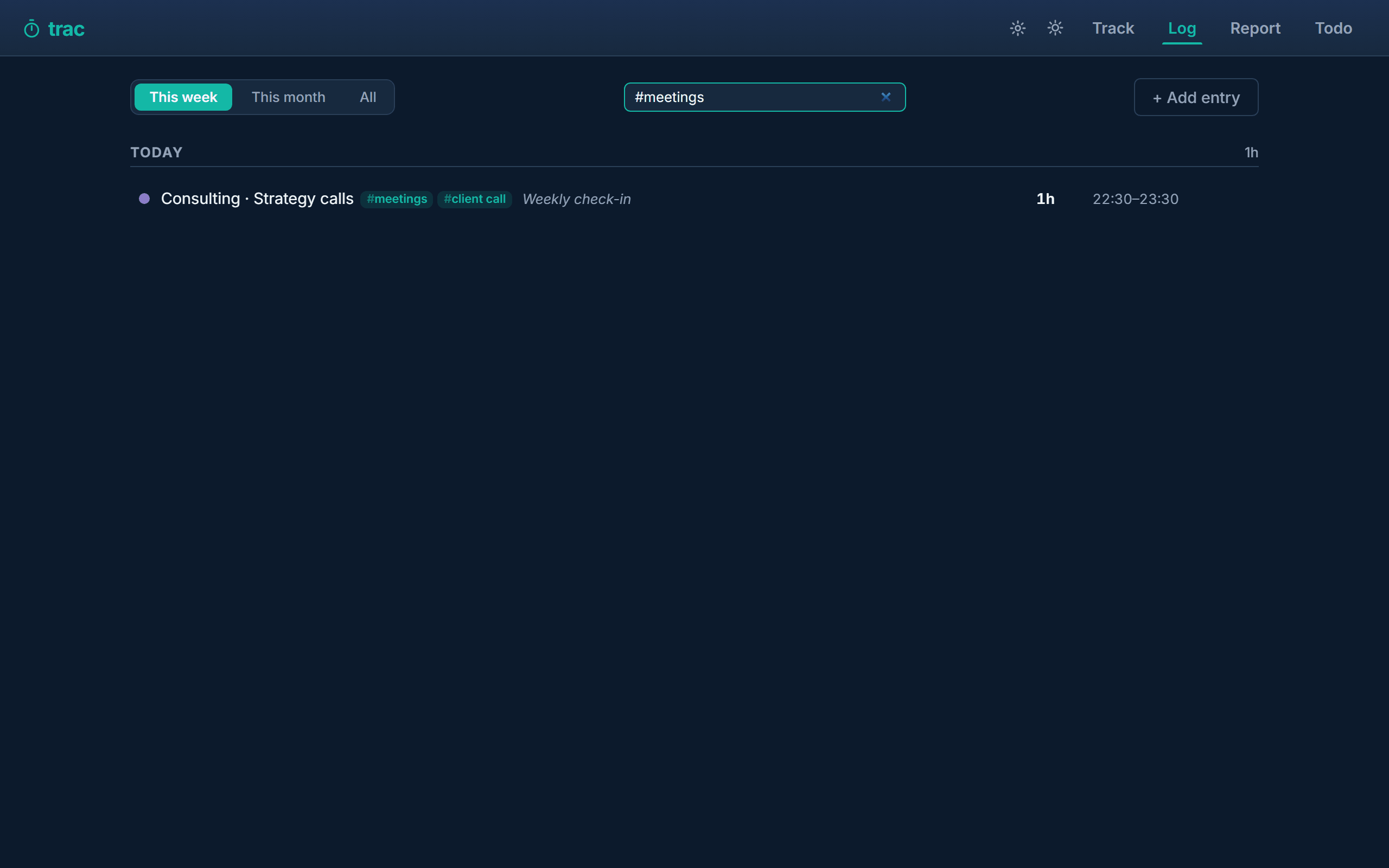
#meetings. A bare word searches projects, tasks, notes and tags together.Add them wherever you edit an entry, separated by commas. A few things Trac does for you:
- Capitalisation is ignored.
Meetings,meetingsand#Meetingsare one tag, not three — otherwise your totals would quietly split. - Multi-word tags are fine —
client callworks, because the separator is a comma, not a space. - The tag list builds itself from the tags in use, and offers them as suggestions. A tag disappears when the last entry using it drops it.
There is no rename. Because the tag list is derived from your entries rather than stored separately, changing #mtg to #meetings means editing the entries that use it.
8 · Reports
Pick a range — this week, this month, or custom dates — and everything below it follows.
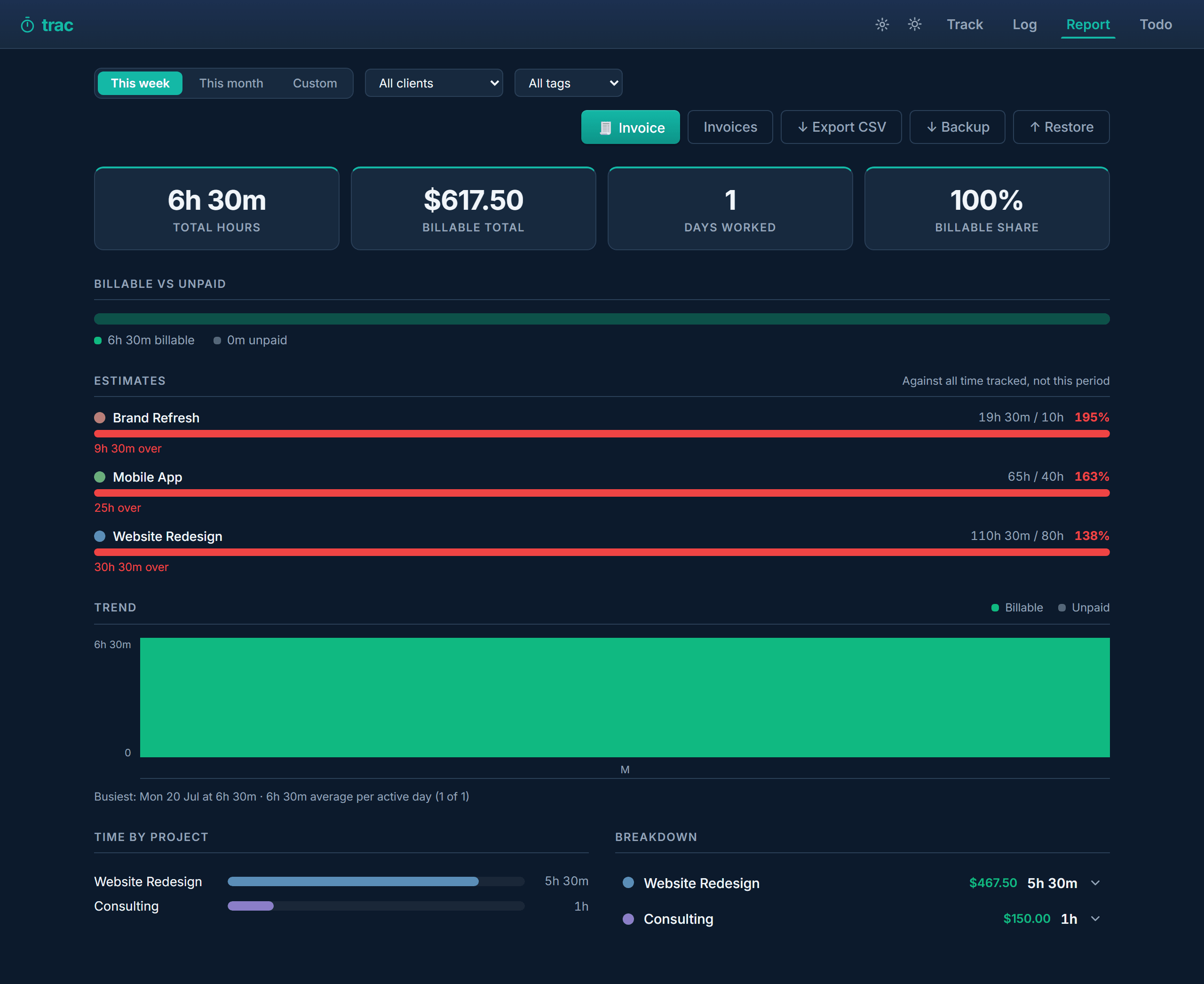
The four numbers

- Total hours — everything tracked in the range.
- Billable total — money, summed per currency. Only work on projects that resolve to a rate counts.
- Days worked — days with at least one entry.
- Billable share — the percentage of your tracked time that is actually earning. This is usually the uncomfortable one.
The trend
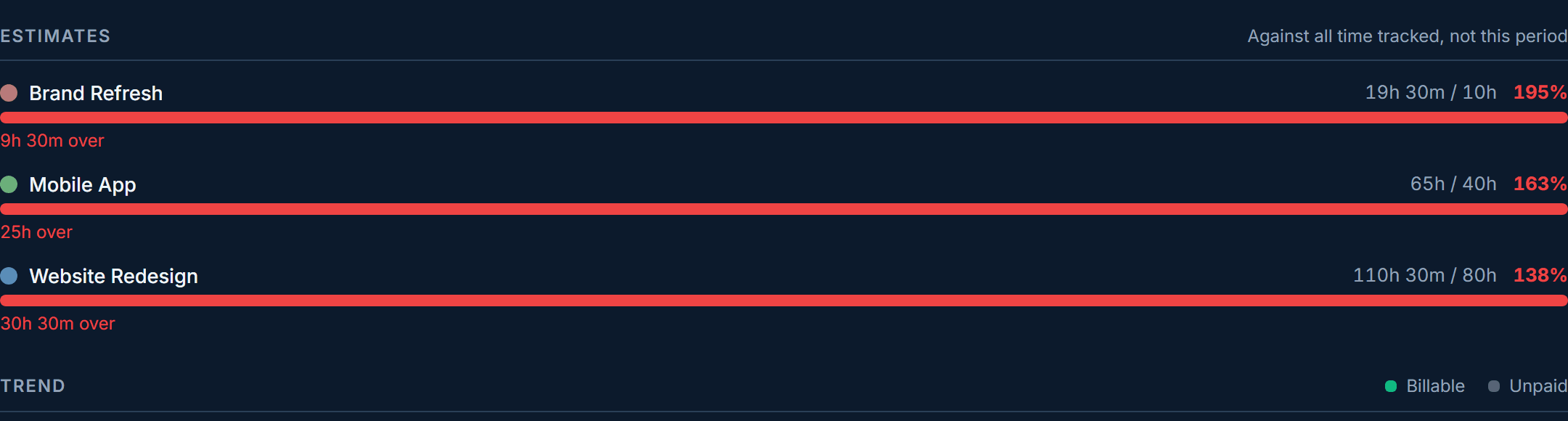
Days you did not work stay as gaps rather than collapsing, so the shape of your week is honest.
The chart and the split always show time actually tracked, never rounded billing time. Rounding is a billing rule and belongs on the invoice, not on a picture of how you spent your week.
Filtering by tag
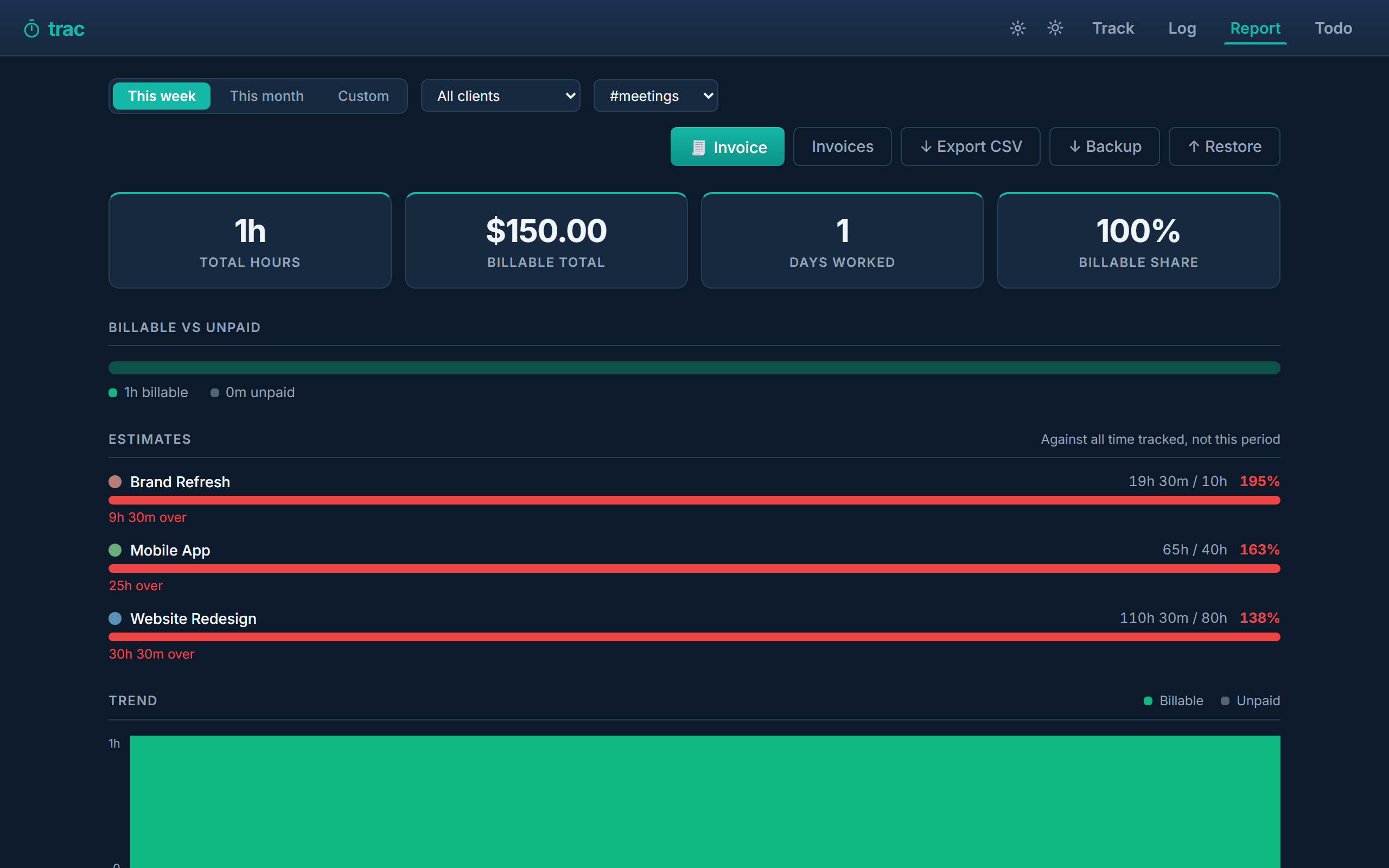
#meetings: every figure on the tab narrows to that tag.Export CSV gives you the raw per-entry data — date, client, project, task, tags, times, duration, billable value and notes — for a spreadsheet or your accountant.
9 · Clients & rates
Clients are optional. Turn them on in Settings → Features if you want a rate and billing details shared across several projects.
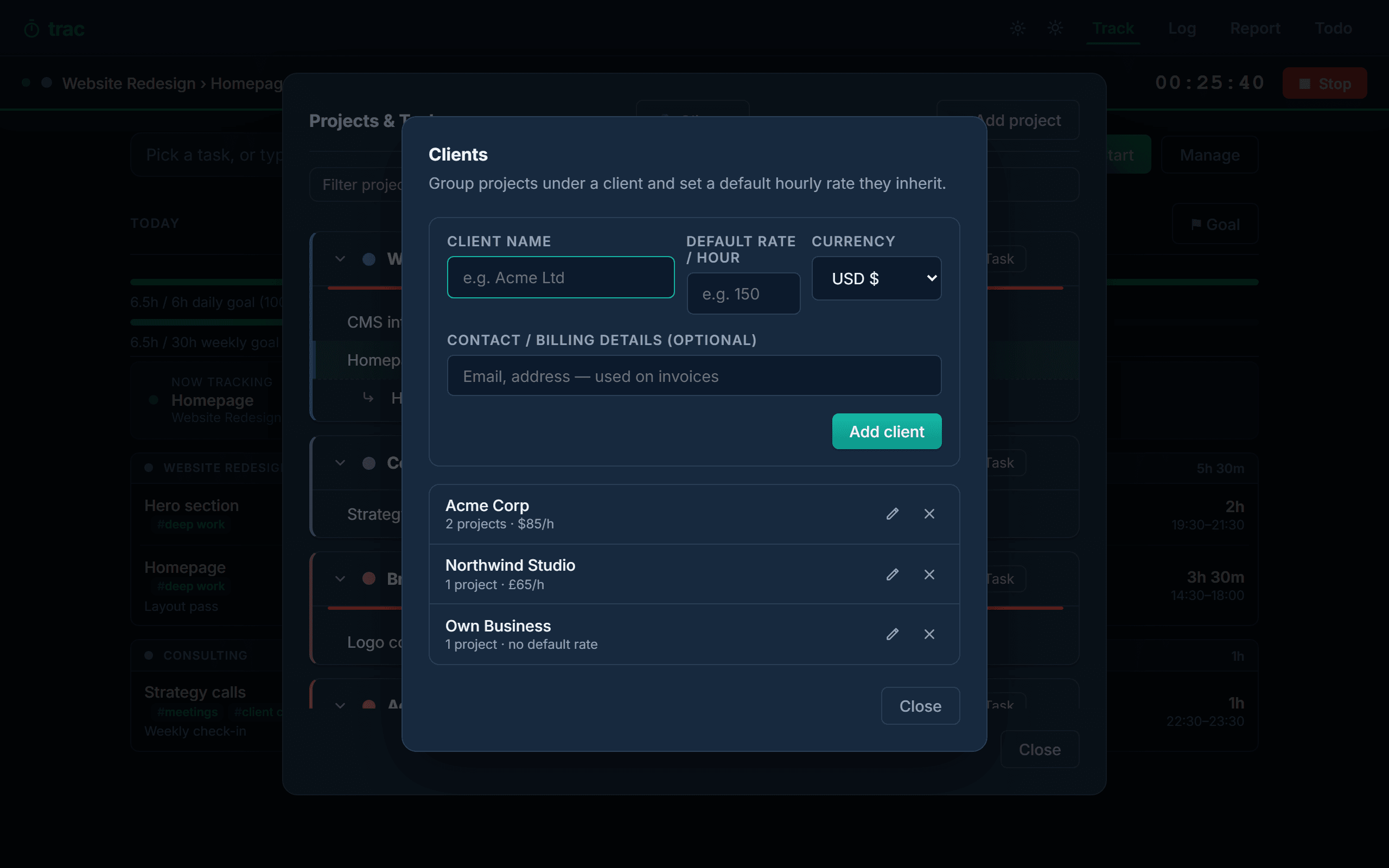
Trac works out an hourly rate in this order:
- The project's own rate, if it has one.
- Otherwise the client's default rate.
- Otherwise the work is not billable — still tracked, still in your totals, just never charged.
10 · Invoicing
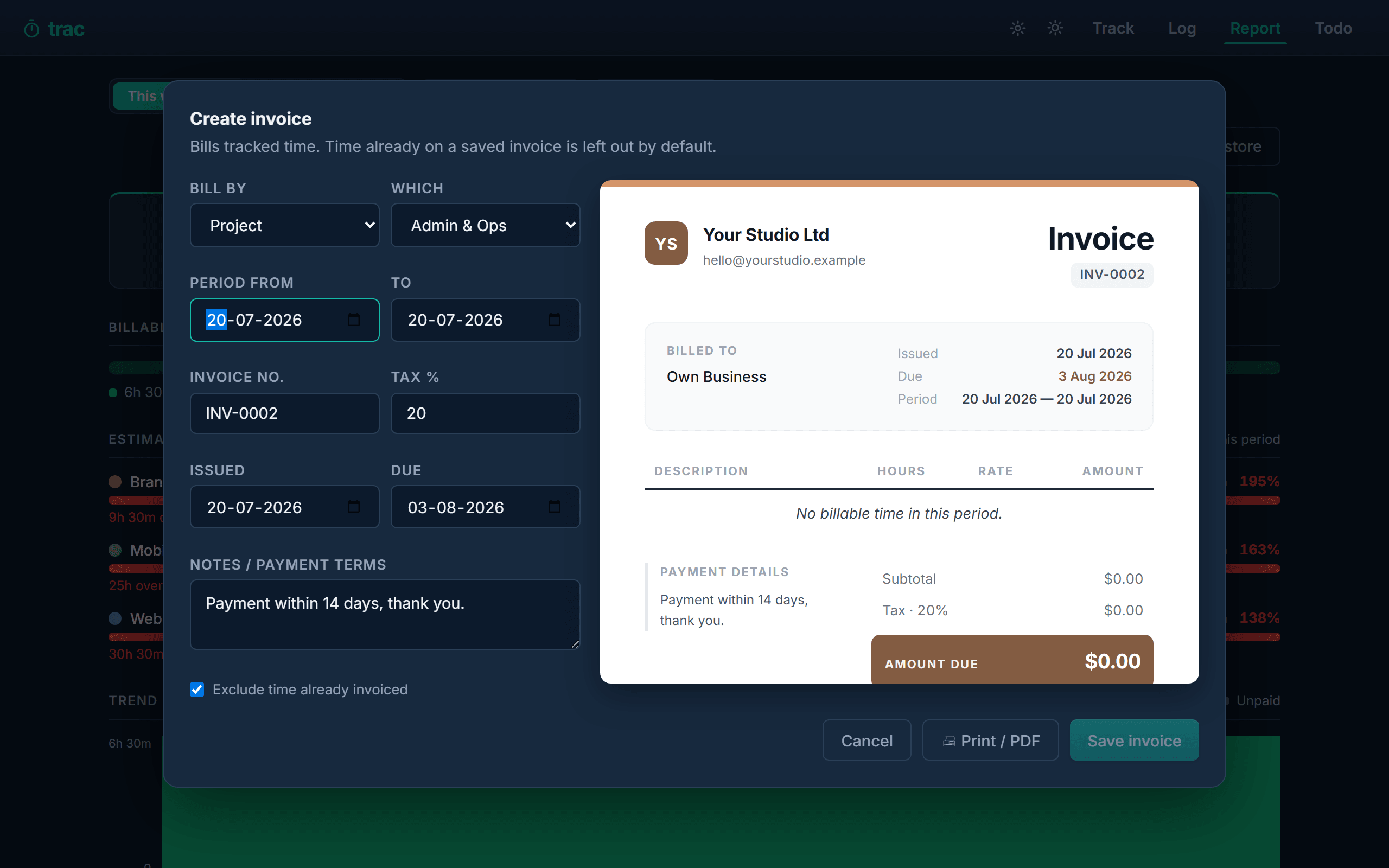
From the Report tab, 🧾 Invoice turns tracked time into a document you can print or save as PDF.
Scope
An invoice covers one project (a line per task) or, with Clients enabled, one client (a line per project). Set your business name, numbering, tax rate and payment terms once in Settings → Invoicing.
Rounding
You can bill in 6, 15 or 30 minute increments, rounding to the nearest unit or always up.
Rounding applies to each invoice line, never to individual entries. That distinction matters: twenty separate 4-minute entries rounded up to 15 would invent nearly four hours you never worked. Rounding the line the client actually sees costs at most one increment per line and stays defensible if they query it. The invoice states the rule it used.
Not billing the same hour twice
Each invoice remembers exactly which entries it covered, and new invoices exclude already-invoiced time by default. Untick that box if you deliberately need to re-bill something.
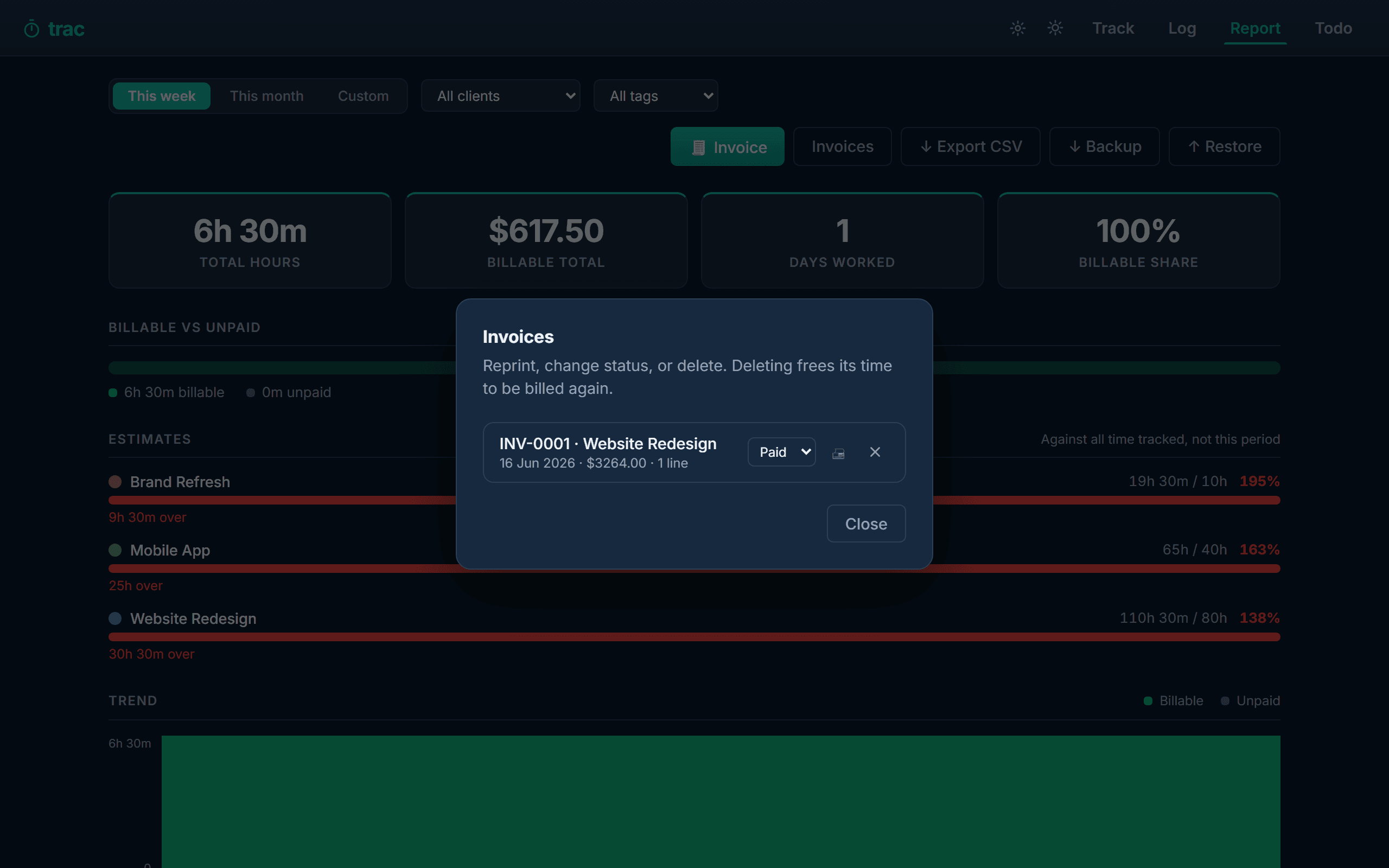
Invoices move through Draft → Sent → Paid; a paid invoice is stamped as such when printed.
A saved invoice is frozen. Rates, names, totals, the rounding rule and the accent colour are all captured at the moment you save. Changing a project's rate afterwards never rewrites an invoice you have already sent — so a reprint always matches what the client received.
Printing
The printer icon opens your browser's print dialog. Choose Save as PDF as the destination. Trac has no PDF library of its own — this keeps it working offline and keeps your invoices off anyone else's server.
If the printed invoice comes out plain white, enable Background graphics in your browser's print options.
11 · Todo list
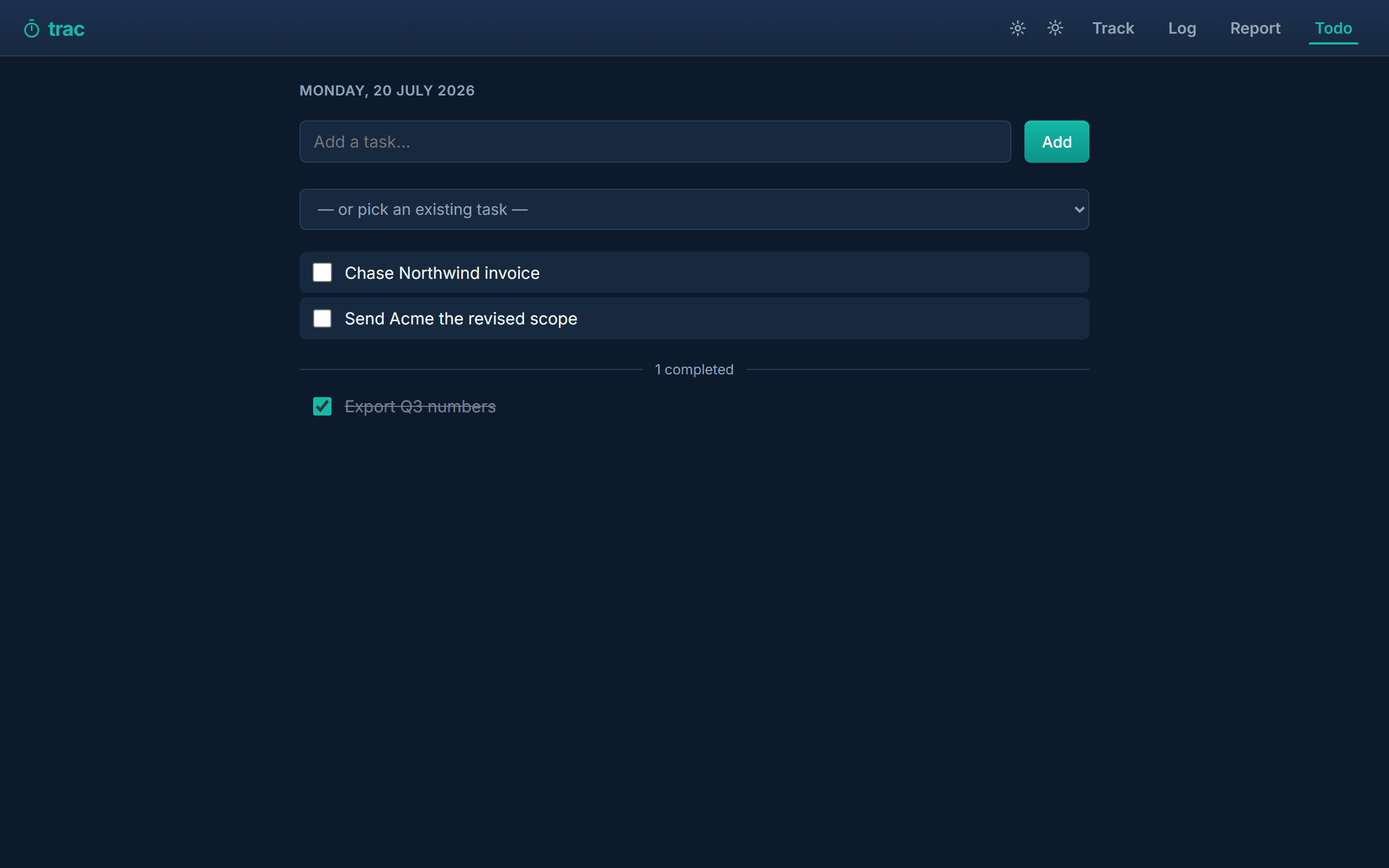
A plain checklist for things that are not worth tracking time against. Items can be linked to a project, and a task can be pushed onto the list from the Manage screen.
12 · Timer safety nets
Two features exist purely to stop a forgotten timer becoming a wrong invoice.
If Trac closed while a timer was running
A running timer writes a heartbeat every few seconds. If Trac dies — a crash, a power cut, an update that restarts your machine — the heartbeat stops, and the gap tells Trac exactly how long nobody was there. On reopening, you are asked what to keep.
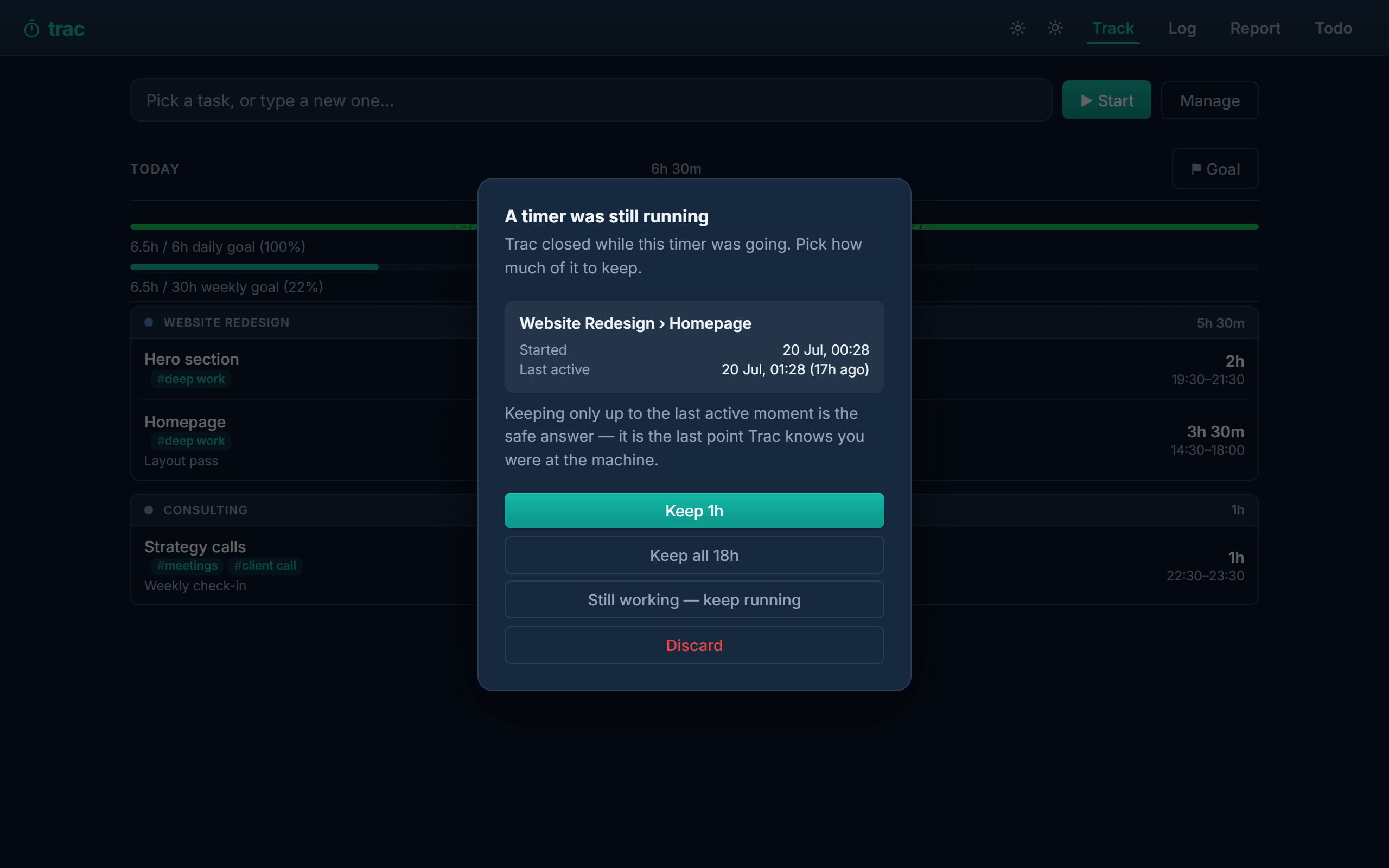
| Choice | Use it when |
|---|---|
| Keep [time] | The safe default. Saves an entry ending at the last heartbeat — the last moment Trac knows you were at the machine. |
| Keep all [time] | You genuinely were working the whole time and the machine simply died at the end. |
| Still working | You are carrying on right now. The timer keeps running from its original start. |
| Discard | The timer was left on by mistake. Nothing is saved. |
The default keeps less time rather than more, deliberately. Time you lose costs you a few minutes you can add back by hand; time you invent gets billed to a client and surfaces when they query the invoice.
If a timer has been running a long time
After four hours (configurable, or off), Trac asks whether you are still tracking — with a banner and a browser notification, so it reaches you even when Trac is not the tab you are looking at.
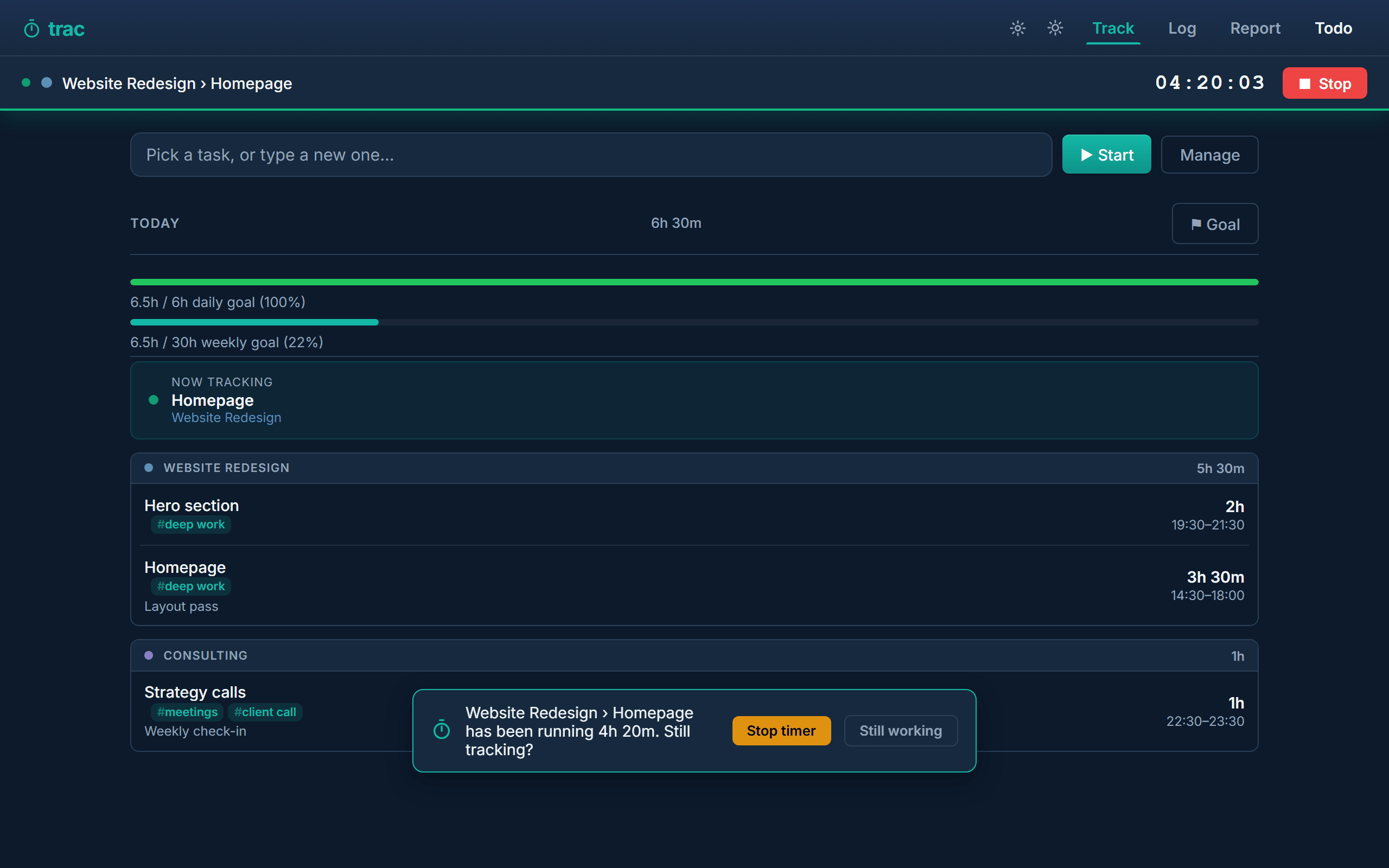
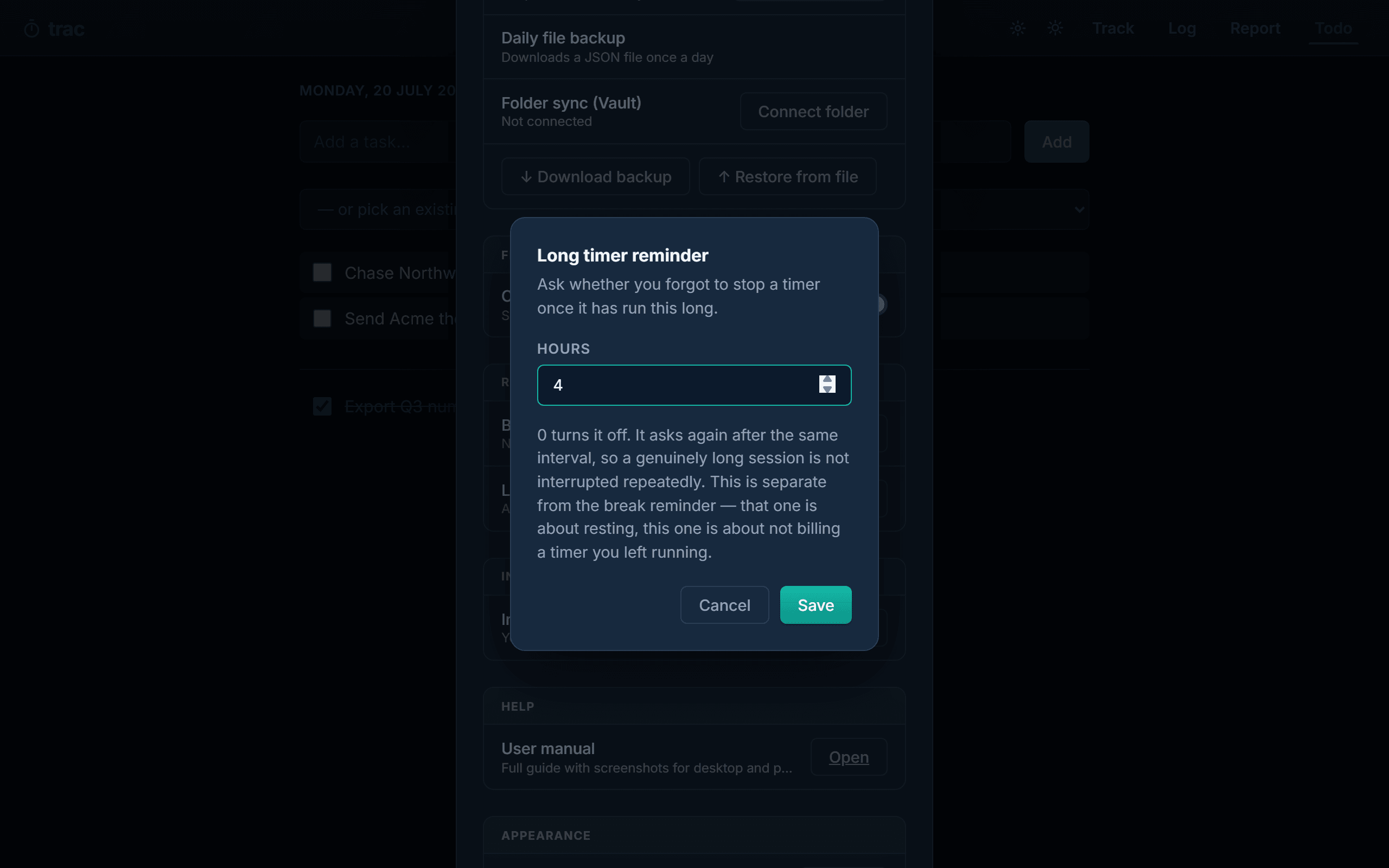
This is separate from the break reminder, which is about your wellbeing rather than your data: it fires on elapsed wall-clock time whether or not a timer is running, and suggests stepping away.
13 · Backups & your data
Trac stores everything in this browser on this device. Nothing is uploaded. That privacy has a cost: nobody else has a copy.
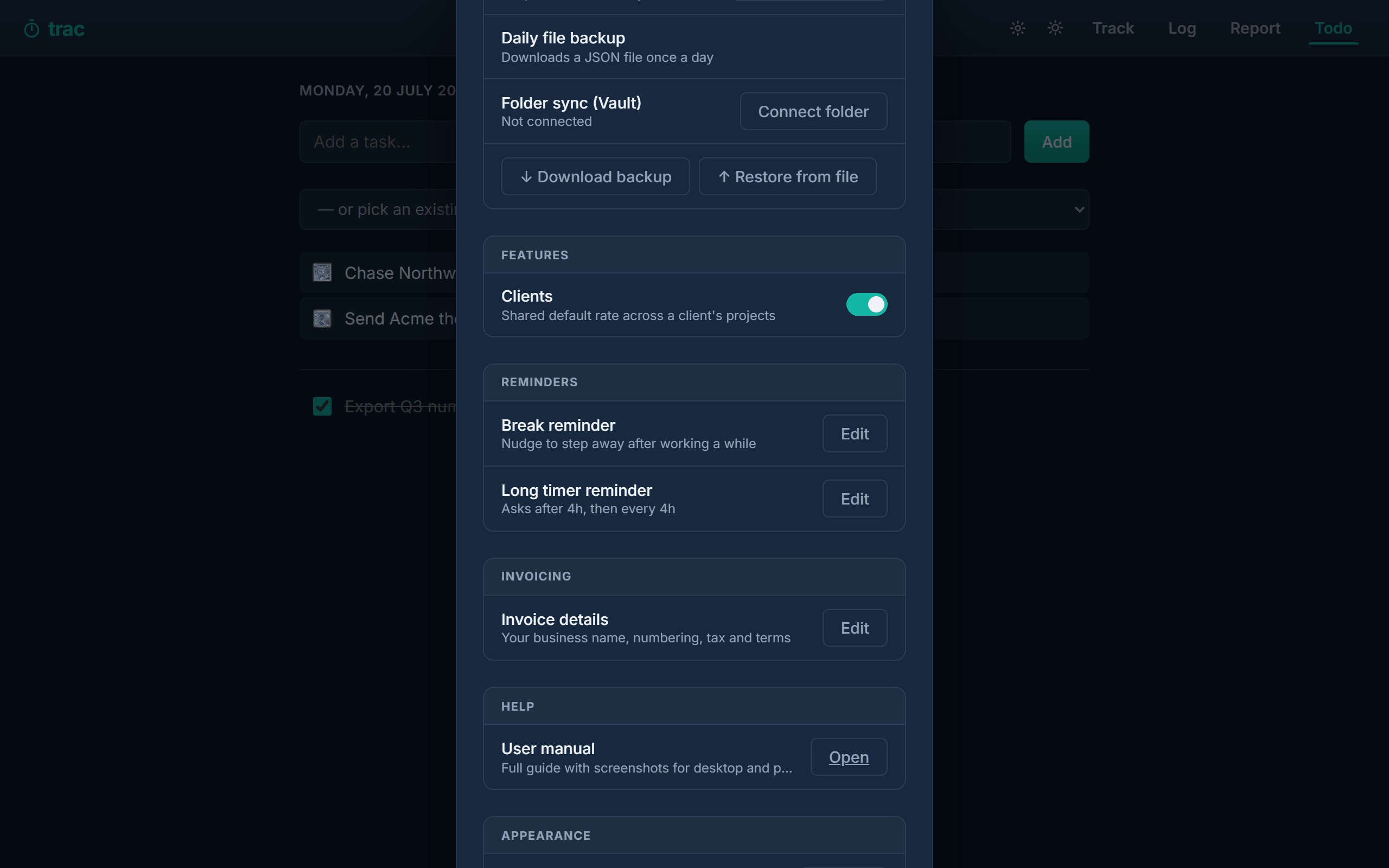
| Option | What it does |
|---|---|
| Download backup | Saves a file with everything — projects, tasks, entries, clients, invoices, settings. Trac asks for a password first: with one you get an encrypted .trac file, without one a plain .json anyone can read. Do this before changing browser or machine. |
| Restore from file | Loads a backup file back in — .trac or .json. An encrypted file asks for its password. |
| Auto-backup (paid) | Periodic snapshots kept inside the app, so you can roll back a mistake. |
| Daily file backup (paid) | Downloads a dated backup file once a day. |
| Folder sync (Vault) (paid) | Points Trac at a real folder on your disk — a Dropbox or OneDrive folder, for example — and keeps a copy written there automatically. |
Clearing your browser's site data deletes your entire history, and there is no server copy to restore from. Take a backup you can find later — a downloaded backup file is free. On the paid plan, Folder sync into a cloud-synced folder keeps that copy up to date automatically.
Moving to a new machine: download a backup on the old one, open Trac on the new one, restore from the file.
About the backup password. A backup file holds every client, rate and note you have. Tick “Use this password for daily and vault backups too” when you set one and the daily file and the Folder sync copy are encrypted as well, so nothing readable is left sitting in Downloads or a synced folder. The password is not stored anywhere Trac can recover it — if you lose it, that file cannot be opened, by you or anyone else. Keep it in a password manager.
14 · Keyboard shortcuts
These work whenever you are not typing in a field.
| Key | Action |
|---|---|
| Space | Stop the running timer |
| S | Jump to the task box, ready to start |
| T | Track tab |
| L | Log tab |
| R | Report tab |
| D | Todo tab |
| M | Manage projects & tasks |
| P | Add a project |
| N | Add a manual entry |
| Ctrl + K | Command palette — search every action |
| Esc | Close the open dialog |
15 · FAQ & troubleshooting
I updated Trac and something looks wrong
Hard-reload the page: Ctrl + Shift + R (Cmd + Shift + R on a Mac). Trac caches itself to work offline, and occasionally an old file lingers.
My Report total does not match my invoice
Almost always rounding. The Report shows time actually tracked; the invoice applies your rounding rule. A client-scoped invoice groups by project, so it can differ from a project-scoped one by up to one rounding increment per project.
Why is my billable total empty?
No rate resolves for that work. Set a rate on the project, or on its client. Time with no rate is tracked but never billed.
Can I use Trac on my phone and my laptop?
You can use it on both, but each keeps its own separate local store — there is no account syncing. Move your data across by downloading a backup file on one device and restoring it on the other. Folder sync only writes a backup copy to a folder — it is not live multi-device sync, so don't rely on a shared cloud folder to keep two devices in step: whichever device saves last overwrites the other's changes.
Does anything I track leave my machine?
No. There is no account and no server to send it to. That is the whole design, and it is why backups are your responsibility.
What is free and what is paid?
Tracking, projects (up to three), tasks, the log and reports for the last 90 days are free, and you can always download and restore a backup file yourself. A one-off purchase removes the three-project limit and unlocks your full history beyond 90 days, invoicing, CSV export, automatic and daily backups, and Folder sync. There is no subscription.